You can place a single NAV GRID for your own use. Using several NAV GRIDs at once, renaming a grid, choosing its color, and sharing grids with your coalition are part of LotAtc Advanced.
What is a NAV GRID ?
A NAV GRID is a navigation grid overlay drawn on the tactical map. It splits the area around a chosen origin into a fan of angular sectors and concentric rings, giving each cell a short voice code (for example 07B). Instead of reading a full bearing and range, you can call a contact’s position with a single two- or three-character code.
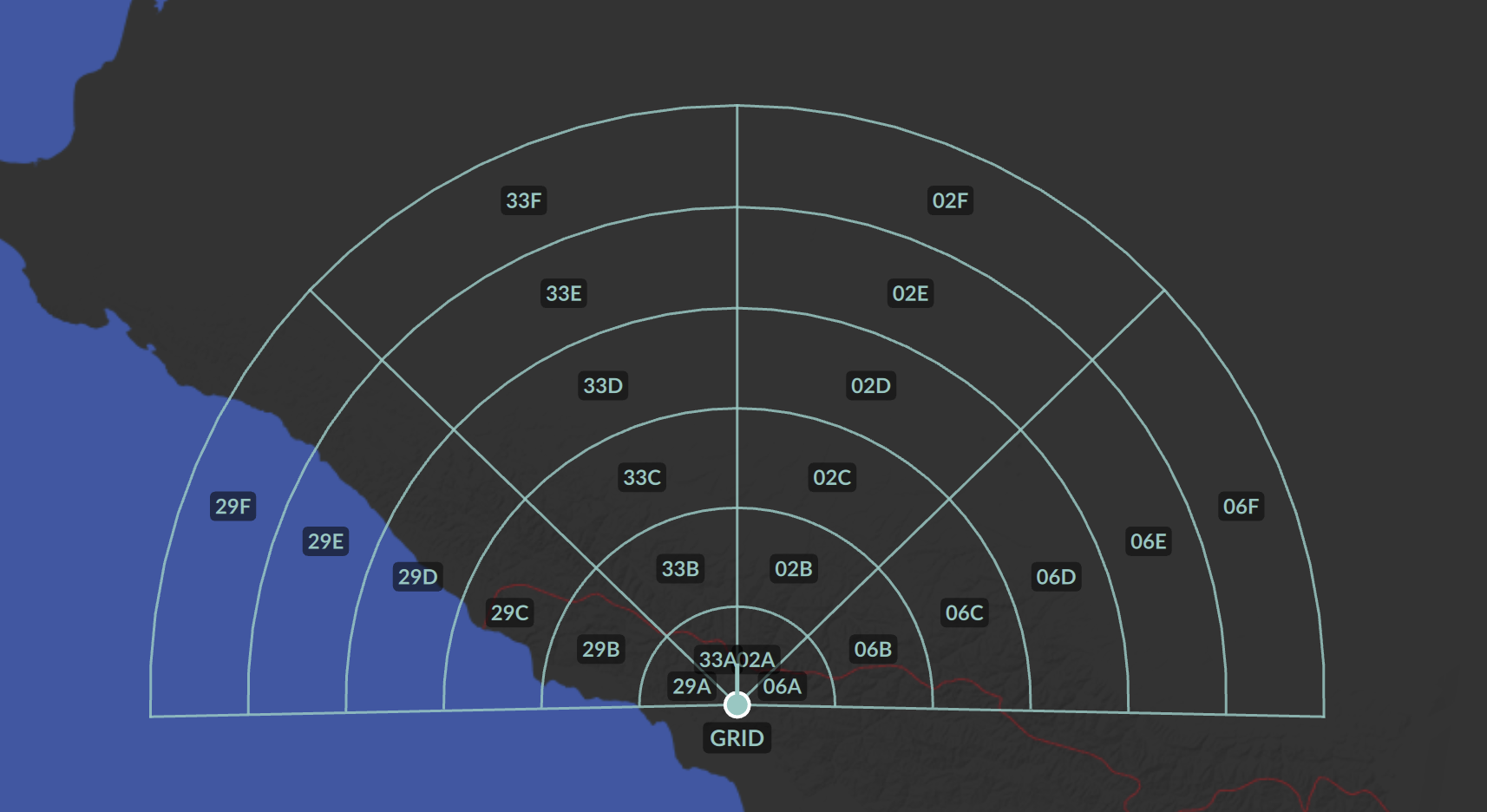
This is designed to match the navigation grid used by the F-14 Tomcat RIO on the TID (Tactical Information Display). With a NAV GRID aligned to the flight’s grid, you can speak the same reference language as the crew — “Bandit, zero-seven bravo” — instead of translating bearing and range in your head.
A NAV GRID is independent from the bullseye: it has its own origin, orientation and geometry. As a convenience, the creation dialog offers a Use bullseye button that pre-fills the origin with the current active bullseye position, but the two remain separate afterwards.
NAV GRIDs are temporary. They are not saved in the mission and are cleared when you disconnect. They are not replayed to clients who connect later — only clients already connected when the grid is shared will receive it.
Creating a NAV GRID
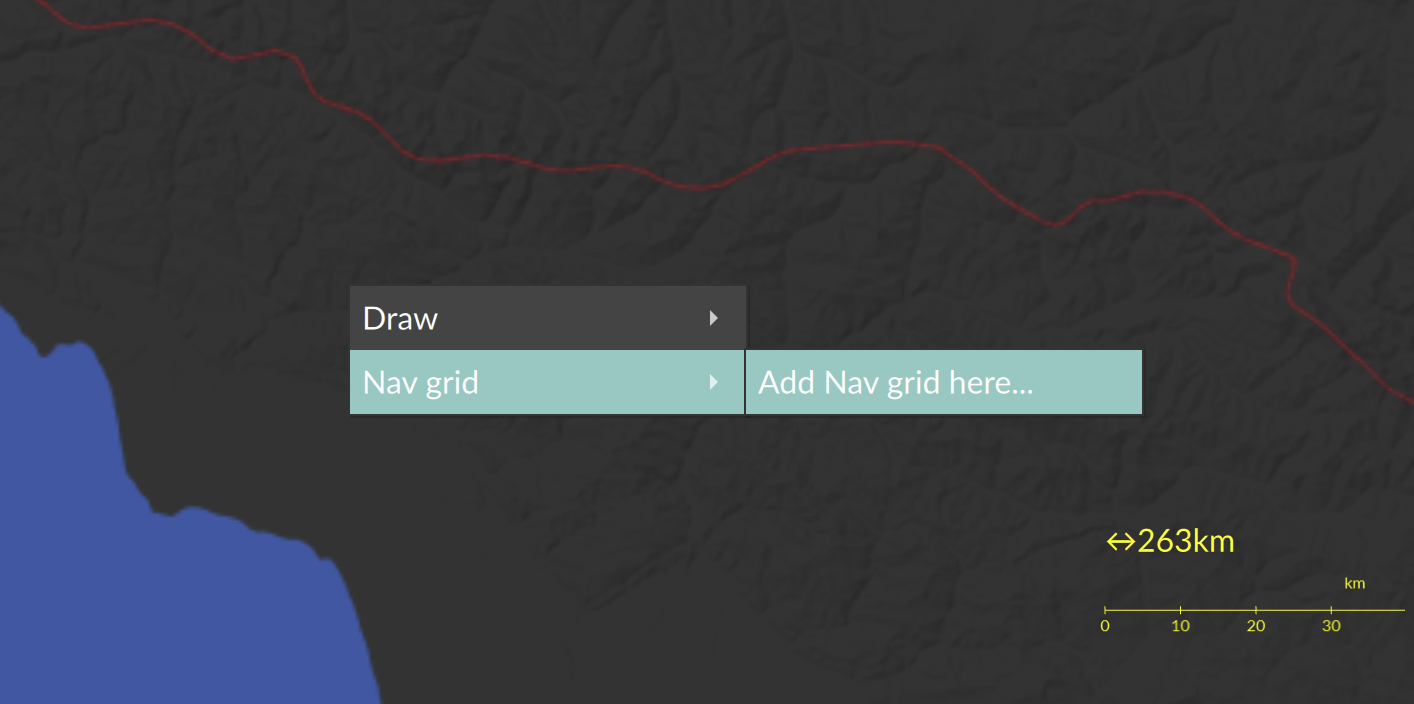
- Right-click on the map where you want the grid origin.
- Open the NAV GRID menu and select Add NAV GRID here….
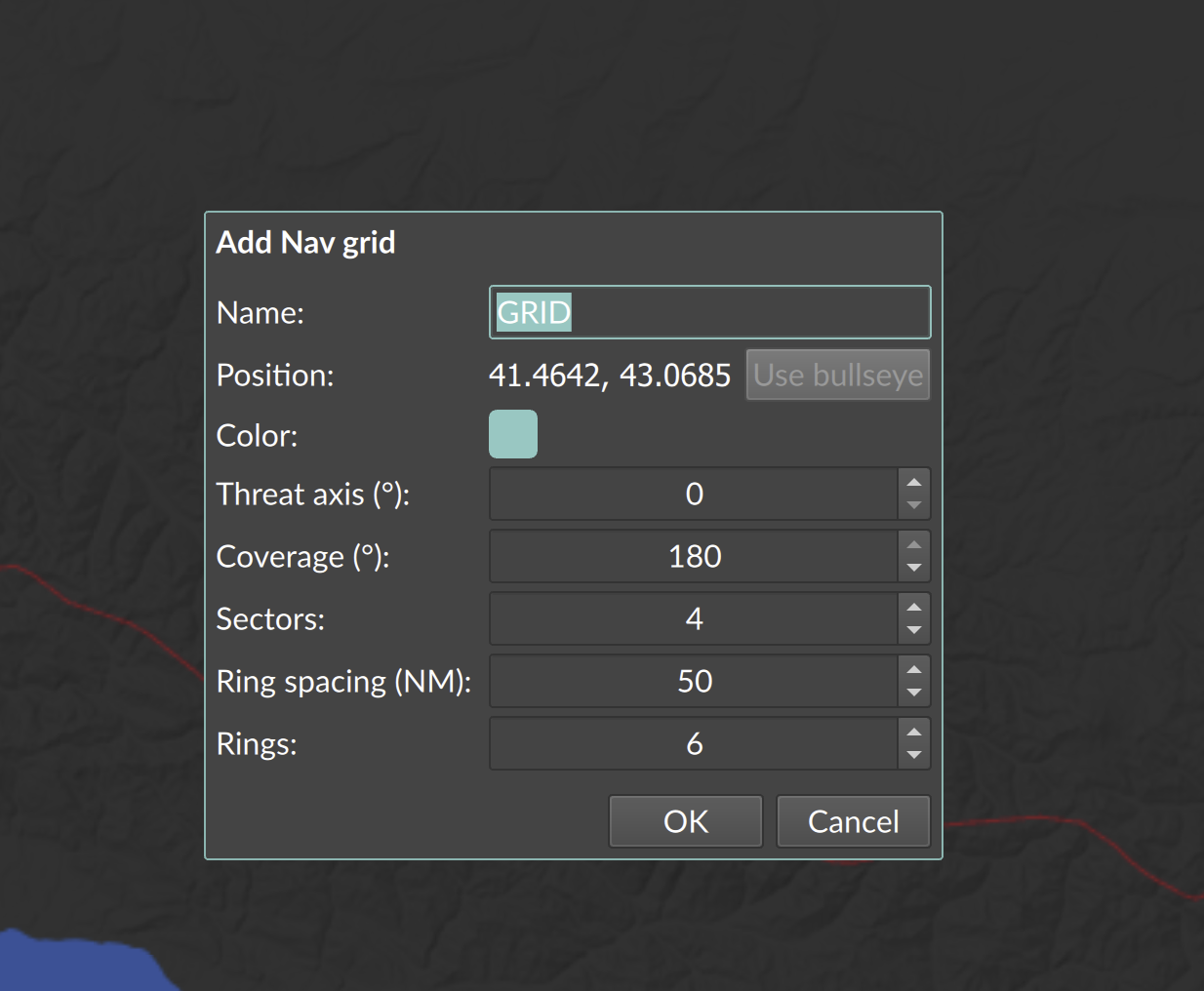
- Fill in the creation dialog:
- NAV GRID name — defaults to
GRID. Renaming requires LotAtc Advanced. - Position — read-only, shows the right-click coordinates. Click Use bullseye to replace it with the active bullseye position (available only when an active bullseye exists).
- Color — defaults to your coalition color when connected. Choosing a custom color requires LotAtc Advanced.
- The geometry fields described below.
- Share with coalition — part of LotAtc Advanced; visible only when connected to a server.
- NAV GRID name — defaults to
- Click OK. The grid appears on the map.
With the base edition you can have a single NAV GRID: the Add NAV GRID here… entry is disabled while a grid already exists — delete it first to place a new one. Using several grids at once is part of LotAtc Advanced.
Geometry options
These options are available both in the creation dialog and later in the Selection panel:
| Option | Range | Default | Description |
|---|---|---|---|
| Threat axis (°) | 0–359 | 0 | Orientation of the grid. The fan is centered on this bearing. |
| Coverage (°) | 10–180 | 180 | Total angular width of the fan, spread around the threat axis. |
| Sectors | 1–6 | 4 | Number of angular sectors the coverage is split into. |
| Ring spacing (NM) | 5–500 (step 5) | 50 | Radial distance between rings, in nautical miles. |
| Rings | 1–20 | 6 | Number of concentric rings from the origin outwards (6 rings × 50 NM ≈ 300 NM). |
Reading voice codes
Each cell of the grid has a voice code combining the bearing and the range from the origin:
- Bearing part — the magnetic bearing of the cell, taken to the nearest 10° and written as two digits (for example a bearing near 70° gives
07). - Range part — a letter starting at
Afor the first ring,Bfor the second, and so on, stepping every ring spacing nautical miles.
So a contact about 70° and 60 NM from the origin (with a 50 NM ring spacing) reads as 07B.
Voice-code labels are drawn at each cell center on the map. You can hide them with the Show voice-code labels option.
On contact labels
A contact’s NAV GRID code can be shown on its label using the %(navgrid) block. When a contact falls inside several grids, all matching codes are listed (for example ALPHA: 07B BRAVO: 12C, using each grid’s name). Only same-coalition grids are considered, and a contact outside every grid’s coverage produces no code.
Sharing with the coalition
Sharing — like using several NAV GRIDs at once, renaming a grid and choosing its color — is part of LotAtc Advanced.
NAV GRIDs you create are local to you until you share them. Sharing requires a server connection.
- Enable Share with coalition in the creation dialog, or click Share with coalition in the Selection panel after creation.
- Once shared, every later edit you make propagates automatically to all same-coalition clients.
Sharing is one-way. A grid cannot be un-shared once published — you can only delete it. Deleting a shared grid removes it for all coalition clients.
Display options (local to your client)
Some display options affect only your own view and are never sent to other controllers:
| Option | Description |
|---|---|
| Show full overlay (local) | When off, hides the rings, sector lines and cell labels, leaving only the central point and the name. |
| Opacity (local) | Dims the whole grid display. Minimum 10% so the central point stays findable. |
Double-click the NAV GRID central point on the map to quickly toggle its full-overlay display on or off.
The central origin point and name are always visible, even when the full overlay is hidden.
Selection panel
When a NAV GRID is selected, the Selection panel shows its name, coalition, whether it is User created, and its position. From there you can edit the geometry and labels, change the local display options, or Delete NAV GRID.
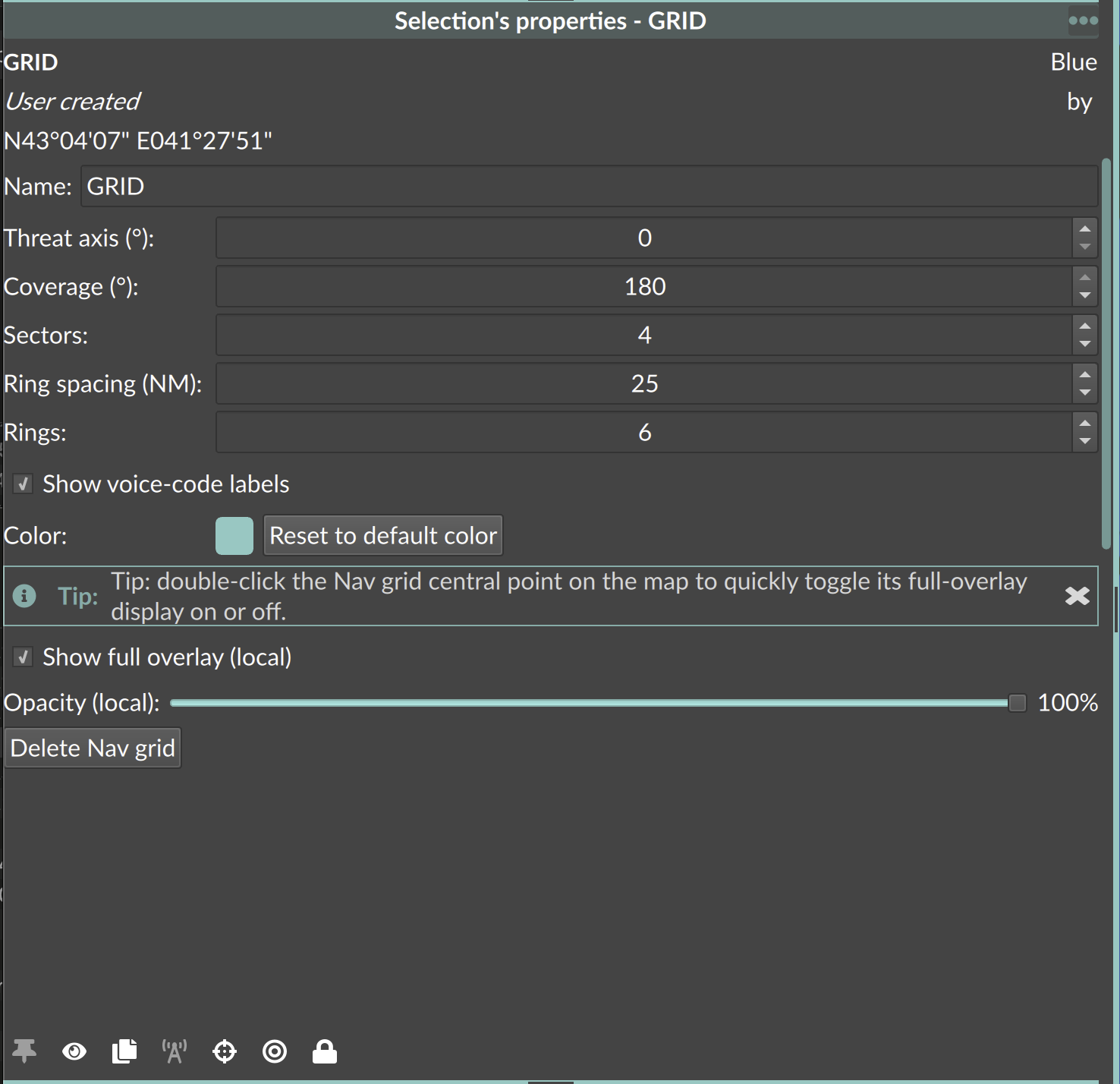
With LotAtc Advanced the panel also lets you rename the grid, change its color and share it (showing the Shared state and author).